Conda PowerShell Hijacking Fix
Fixing Conda + PowerShell Hijacking on Windows (VS Code)
This document captures a real-world debugging session resolving a broken Conda activation setup in Windows PowerShell / VS Code caused by command hijacking, profile conflicts, and shell integration issues.
The result is a stable, reproducible Conda workflow suitable for DevOps, data science, and CI/CD use.
🧩 Problem Summary
Symptoms included:
conda activate <env>failing with:
  conda-script.py: error: argument COMMAND: invalid choice: ''
  Invoke-Expression: Cannot bind argument to parameter 'Command' because it is an empty string.
conda env exportproducing empty files- Errors reappearing after restarting VS Code
where condareturning inconsistent or multiple paths- Conda working only when invoked via explicit
.batpaths
🔧 Why this happens
Why Conda breaks in PowerShell / VS Code
- PowerShell uses aliases and modules that override executables
- VS Code loads a different PowerShell profile than your normal terminal
- Conda’s PowerShell hook is fragile and often fails silently
- Windows installs multiple conda shims, and the wrong one gets picked up
Note: Activation is still fine in Git Bash, WSL, or CMD. PowerShell is the only shell where activation is fragile.
🔍 Root Causes Identified
- PowerShell Alias Hijacking
- An auto-created PowerShell alias named
condawas intercepting calls. - This alias pointed to a broken PowerShell module (
Conda.psm1).
- An auto-created PowerShell alias named
- Multiple Conda Entry Points on PATH
conda.execonda.batinLibrary\binconda.batincondabin(the correct one for shells)
- Conflicting PowerShell Profiles
Microsoft.PowerShell_profile.ps1(VS Code host)- Another profile with a valid
conda initblock - The wrong profile was executing first and crashing
- Broken PowerShell Hook
conda shell.powershell hookreturned an empty command stringInvoke-Expressionfailed as a result
💡 What Worked (The Fix)
1️⃣ Identify Hijacking
Get-Command conda -All
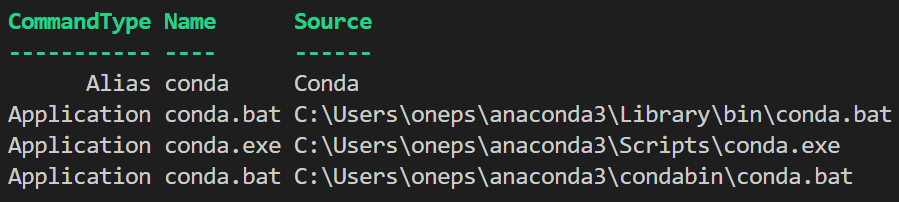
Revealed:
Alias conda(bad)- Multiple application entrypoints
2️⃣ Remove the Hijacking Layers
Remove-Item Alias:conda -Force -ErrorAction SilentlyContinue
Remove-Item Function:conda -Force -ErrorAction SilentlyContinue
Remove-Module Conda -Force -ErrorAction SilentlyContinue
Confirmed clean state:
Get-Command conda -All
Only Application entries should remain.
3️⃣ Verify Conda Itself Works
& "C:\Users\oneps\anaconda3\condabin\conda.bat" --version
Output:
conda 24.11.3
This confirmed Conda was healthy — only the shell integration was broken.
👷♀️ Recommended Workflow Going Forward
- Use conda run for scripts and notebooks
- Use explicit interpreter paths in VS Code
- Avoid relying on conda init in PowerShell
- Keep environments modular (ds_light, nlp_env, dl_env)
- Export with –from-history for reproducibility
🛠️ Stable Working Pattern
✅ Use conda run instead of activation
This avoids PowerShell activation entirely and is CI/CD friendly.
conda run -n ai_marketing python -V
✅ Export environments without activating
conda env export -n ai_marketing --from-history --no-builds > ai_marketing_env.yml
This produces a clean, portable environment file.
🔧 CI/CD Example snippet
Example usage with GitHub Actions:
# GitHub Actions example
- name: Run script in Conda env
  run: conda run -n ai_marketing python train.py
This shows the reader how your fix translates into automation.
🔒 Optional: Stabilize PowerShell Permanently
Add this to the top of the PowerShell profile used by VS Code:
# --- Stabilize Conda in PowerShell / VS Code ---
Remove-Item Alias:conda -Force -ErrorAction SilentlyContinue
Remove-Item Function:conda -Force -ErrorAction SilentlyContinue
Remove-Module Conda -Force -ErrorAction SilentlyContinue

# Force the correct Windows entrypoint
Set-Alias conda "C:\Users\oneps\anaconda3\condabin\conda.bat"
Note: This process prevents Conda from being hijacked again, but is less optimal.
🧠 Key Takeaways
- Conda on Windows has multiple valid entrypoints
- PowerShell activation depends on fragile shell hooks
- VS Code often loads a different PowerShell profile than expected
conda runis the most reliable and modern workflow- Avoid developing directly in
base - Prefer reproducible, activation-free commands
🏁 Final State
You now have:
- ✅ A working Conda installation
- ✅ Clean environment exports
- ✅ A PowerShell setup that won’t break on restart
- ✅ A DevOps-aligned workflow suitable for scripting and CI
Data Inside Data™. Tech Hands, a science Mind, and a Heart for Community™.