Migrating an End-of-Life Python Conda Environment (3.8 / 3.9 → 3.10+)
Migrating an End-of-Life (EOL) Python Environment (The Right Way)
In VScode End-of-life (EOL) Python versions will often surface as:
- “Unsupported kernel” warnings in Jupyter
- Broken extensions or tooling
- Incompatible dependencies during installs
- CI failures due to dropped support
👇 EOL Message in VS Code
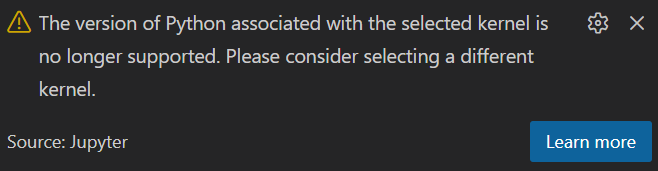
The good news: you can migrate your entire environment — packages, workflows, and kernels into a modern Python version without chaos.
This guide documents a professional, reproducible workflow used by engineering teams to upgrade Python environments safely.
🧠 Core Principle
Never upgrade Python in place.
Always re-solve the environment from a clean spec.
This avoids:
- dependency hell
- ABI mismatches
- broken compiled libraries
- stale kernels
🧪 Step 1 — Export the Existing Environment (Portable Spec)
Do not use --explicit. That pins old builds and blocks solving.
Use:
conda env export --no-builds > old_env.yml
This gives you:
- package names
- version constraints
- no OS-specific build strings
- a spec that can be re-solved for a new Python version
⚠️ Windows / PowerShell note
If Conda behaves oddly in PowerShell, you can still export directly:
- Check out the Tech Fixes guide on fixing conda activation issues.
conda env export -n old_env_name --no-builds > old_env.yml
🧬 Step 2 — Edit + rename the YAML file to Bump Python
Open old_env.yml and change:
dependencies:
  - python=3.11
And remove any stale or unneeded packages, then rename the name of the environment:
name: your_updated_env_name
Why Python 3.11?
- Best balance of performance + ecosystem support
- Widely supported by data science libraries
Python 3.10 is also a great choice that’s also widely supported by data science libraries
🆕 Step 2 — Create the New Environment
conda env create -f your_updated_env_name.yml
Conda reads:
- the environment name
- the Python version
- the Conda packages
- the pip packages
- the channels
…and builds a fresh environment exactly as described, as well as:
- solve dependencies for chosen Python version (3.10, 3.11, etc.)
- install compatible versions
- skip unsatisfiable packages
- produce a clean, modern environment
🧹 Step 3 — Reinstall the Jupyter Kernel (Critical)
Activate the new environment:
conda activate my_new_env
Install a fresh kernel:
python -m ipykernel install --user \
  --name my_new_env \
  --display-name "Python 3.11 (my_new_env)"
This ensures:
- Jupyter recognizes the kernel
- The kernel is marked as supported
- Notebook warnings disappear
🧭 Optional — Audit What Migrated
To see only what you explicitly installed:
conda env export --from-history
This is useful for:
- cleanup
- documentation
- long-term reproducibility
🧹 Step 5 — Remove the Old Environment
Once everything works:
conda env remove -n old_env_name
If needed, clean up kernels:
jupyter kernelspec list
jupyter kernelspec remove old_env_name
Optional cache cleanup:
conda clean --all
📦 Professional-Grade Environment Template
name: my_new_env
channels:
  - conda-forge
  - defaults

dependencies:
  - python=3.11
  - pip
  - numpy
  - pandas
  - scipy
  - matplotlib
  - jupyterlab
  - ipykernel
  - pytest
  - black
  - flake8
  - pip:
      - add-packages-below-here
This format is:
- readable
- reproducible
- CI/CD friendly
- future-proof
🧠 Why This Works
This is a controlled re-solve, not an upgrade.
It:
- avoids broken kernels
- avoids ABI conflicts
- aligns with professional DevOps practices
- produces a clean, supportable environment
Final Thought
Treat environments like infrastructure:
- declarative
- reproducible
- disposable
That mindset scales from laptops → teams → production.